
Salesforce – How to Prevent Auto-Reply for an Email to case in Salesforce ?

How Salesforce Platform License Users Can Access Case Object?
January 21, 2019
Kanban Salesforce for the Objects Which Doesn’t Have Picklist Values
January 21, 2019Problem Description :
Salesforce customers/users have issues adding email to the activity tab and customizing the email to send new mail every time.
Challenges to User/Developer :
Auto-response rules let you automatically send email responses to lead or case submissions based on the record’s attributes. For example, you can send an automatic reply to customers to let them know someone at your company received their inquiry.
Create auto-response rules for leads captured through a Web-to-Lead form and for cases submitted through :
- Self-Service portal
- Customer Portal
- Web-to-Case form
- Email-to-Case message
- On-Demand Email-to-Case message
Create Auto-Response Rules
To create a response rule for cases, from Setup, enter Auto-Response Rules in the Quick Find box, then select Case Auto-Response Rules. On the Auto-Response Rules page:
- Click New.
- Enter the rule name.
- To activate this rule, select Active.
- Click Save.
Enable Email-to-Case and then create a custom email action
Approach :
Enable Email-to-Case and then create a custom email action.
Technical Solution :
To enable email under activity in the case, first, enable Email-to-Case·
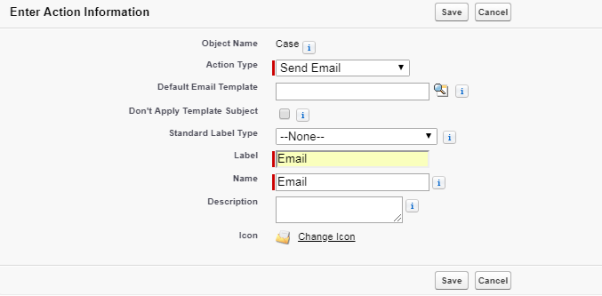
Select “Send email” as the action type and fill the label, Name.
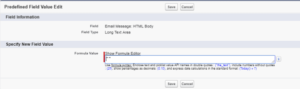
To prevent auto-reply, Set blank values as the Predefined Field Values for HTML body and subject respectively.
Advantage :
Every email is treated as a new email and not a reply or a forward.
Issues :
None.
Conclusion :
This is the only way to avoid auto-reply in email for case objects in Salesforce.
